




You are now leaving our website and entering a third-party website over which we have no control.
Mobile Wallets
Paying for purchases is convenient, secure and easy when you connect your MBNA credit card to Apple Pay, Google Pay, or Samsung Pay. Terms of use apply.
Benefits of using Samsung Pay with your MBNA credit card
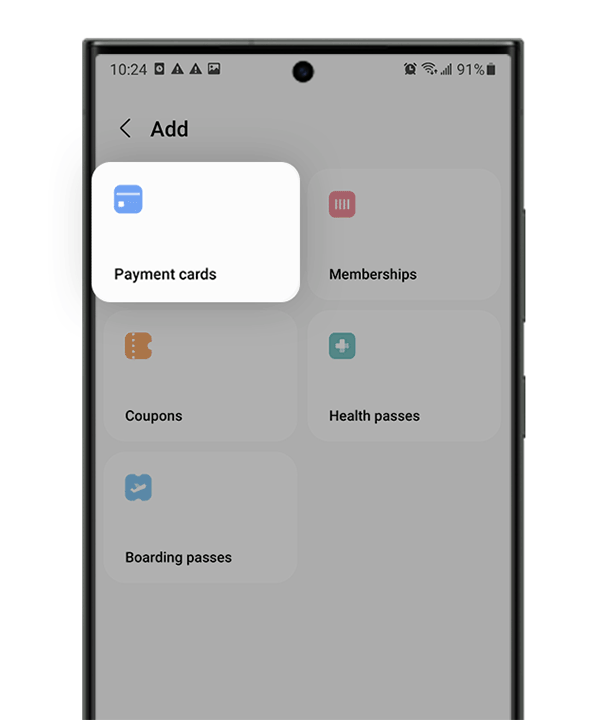
How to set up Samsung Pay on Samsung Galaxy smartphones2
If you don't already have the MBNA Mobile App, download it here.
How to make purchases with Samsung Pay

Step 1: Open Samsung Wallet
Open Samsung Wallet or swipe up at the bottom of your Galaxy device and select the MBNA credit card you want to pay with. Verify with your fingerprint, Face ID or PIN.
Step 2: Hold your device to the sales terminal
Tap or hold your phone over the merchant’s terminal for a few seconds until an eligible payment has been completed.1
Frequently asked questions
Step 1: On your Galaxy Watch, go to Samsung Pay.
Step 2: Follow the on-screen instructions to set up your Samsung Pay PIN.
Step 3: Once prompted, continue following the instructions on your Galaxy smartphone to add your eligible MBNA credit card. Please note that you will have to agree to the terms of use and provide your consent as part of set up.
To make purchases with Samsung Pay on your Galaxy Watch, just hold down the back button to open Samsung Pay and scan your watch on the merchant’s card reader.
Samsung Galaxy Smartphones
- Navigate to and open Samsung Wallet on your Galaxy smartphone.
- Open the Menu and then tap the Settings icon on the top left.
- Use your fingerprint, Face ID or Samsung Pay PIN to confirm your identity for Samsung Pay if prompted.
- Tap ‘Quick access and default card’ and then tap ‘Set default card’.
- Tap the switch at the top to turn the feature on and display your registered cards.
- Select your MBNA credit card to set as your default payment card. When you are done, simply tap the Back arrow.
Samsung Galaxy Watch
On your watch, go to Samsung Pay and follow the instructions, which will include setting up your Samsung Pay PIN.
Note: All eligible additional cardholders can add their cards to Samsung Pay.
If you are experiencing issues with adding your MBNA credit card on Samsung Pay, here are some steps you can follow:
- Check your MBNA credit card to make sure you have entered your card details correctly
- Check that your device is compatible with Samsung Pay
- Update your device to the latest version of Android
- Make sure you are in a supported country or region.
If you have further questions, give us a call at 1-888-876-6262.
Lost or stolen MBNA credit card
If you think you've misplaced your MBNA credit card, lock it in the MBNA Mobile App and unlock when you've found it. (Please note, if you lock your MBNA credit card account in the MBNA Mobile App, you can't make new purchases, take out cash advances or request balance transfers. However, pre-authorized payments will still go through, and you can still return purchases and get credits and refunds using this card.)
If your card or other credit device is lost, stolen, or misplaced, contact us immediately at 1-888-876-6262 to deactivate your card from use. Customer Service associates are standing by 24 hours a day, 7 days a week.
Lost or stolen Samsung device
You must call us at 1-888-876-6262 to deactivate your MBNA credit card on Samsung Pay.
Your MBNA credit card will remain active and available for purchases using Samsung Pay until the date of expiry on your plastic card. You will be mailed a new card which must be activated for it to be used. Once activated, your new card will be ready to use on Samsung Pay automatically.
To see a full list of Samsung Galaxy devices and watches that are compatible with Samsung Pay, visit the Samsung Pay Page.
All MBNA Mastercard credit cards in Canada which are in good standing are eligible for use with Samsung Pay.
Samsung Pay works with your MBNA credit card in eligible countries and regions that support contactless payments.
Note: Additional fees may be charged for wireless data or foreign transactions.
There are several reasons why your MBNA credit card may be declined with Samsung Pay:
- You have reached the credit limit for your card or there is limit on the transaction amount
- There may be a problem with Samsung Pay or your device which is preventing transactions from going through. Ensure your device is updated to the latest version of Android
- You are not in a supported country or region
- The merchant terminal does not support contactless payments
If you have any further questions, give us a call at 1-888-876-6262.
Step 1: On your Galaxy Watch, go to Samsung Pay.
Step 2: Follow the on-screen instructions to set up your Samsung Pay PIN.
Step 3: Once prompted, continue following the instructions on your Galaxy smartphone to add your eligible MBNA credit card. Please note that you will have to agree to the terms of use and provide your consent as part of set up.
To make purchases with Samsung Pay on your Galaxy Watch, just hold down the back button to open Samsung Pay and scan your watch on the merchant’s card reader.
Samsung Galaxy Smartphones
- Navigate to and open Samsung Wallet on your Galaxy smartphone.
- Open the Menu and then tap the Settings icon on the top left.
- Use your fingerprint, Face ID or Samsung Pay PIN to confirm your identity for Samsung Pay if prompted.
- Tap ‘Quick access and default card’ and then tap ‘Set default card’.
- Tap the switch at the top to turn the feature on and display your registered cards.
- Select your MBNA credit card to set as your default payment card. When you are done, simply tap the Back arrow.
Samsung Galaxy Watch
On your watch, go to Samsung Pay and follow the instructions, which will include setting up your Samsung Pay PIN.
Note: All eligible additional cardholders can add their cards to Samsung Pay.
If you are experiencing issues with adding your MBNA credit card on Samsung Pay, here are some steps you can follow:
- Check your MBNA credit card to make sure you have entered your card details correctly
- Check that your device is compatible with Samsung Pay
- Update your device to the latest version of Android
- Make sure you are in a supported country or region.
If you have further questions, give us a call at 1-888-876-6262.
Lost or stolen MBNA credit card
If you think you've misplaced your MBNA credit card, lock it in the MBNA Mobile App and unlock when you've found it. (Please note, if you lock your MBNA credit card account in the MBNA Mobile App, you can't make new purchases, take out cash advances or request balance transfers. However, pre-authorized payments will still go through, and you can still return purchases and get credits and refunds using this card.)
If your card or other credit device is lost, stolen, or misplaced, contact us immediately at 1-888-876-6262 to deactivate your card from use. Customer Service associates are standing by 24 hours a day, 7 days a week.
Lost or stolen Samsung device
You must call us at 1-888-876-6262 to deactivate your MBNA credit card on Samsung Pay.
Your MBNA credit card will remain active and available for purchases using Samsung Pay until the date of expiry on your plastic card. You will be mailed a new card which must be activated for it to be used. Once activated, your new card will be ready to use on Samsung Pay automatically.
To see a full list of Samsung Galaxy devices and watches that are compatible with Samsung Pay, visit the Samsung Pay Page.
All MBNA Mastercard credit cards in Canada which are in good standing are eligible for use with Samsung Pay.
Samsung Pay works with your MBNA credit card in eligible countries and regions that support contactless payments.
Note: Additional fees may be charged for wireless data or foreign transactions.
There are several reasons why your MBNA credit card may be declined with Samsung Pay:
- You have reached the credit limit for your card or there is limit on the transaction amount
- There may be a problem with Samsung Pay or your device which is preventing transactions from going through. Ensure your device is updated to the latest version of Android
- You are not in a supported country or region
- The merchant terminal does not support contactless payments
If you have any further questions, give us a call at 1-888-876-6262.