






You are now leaving our website and entering a third-party website over which we have no control.
Mobile Wallets
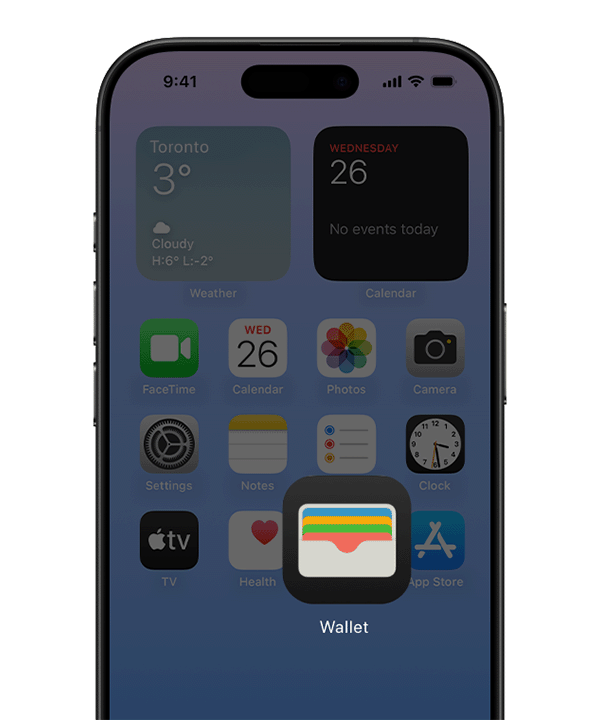
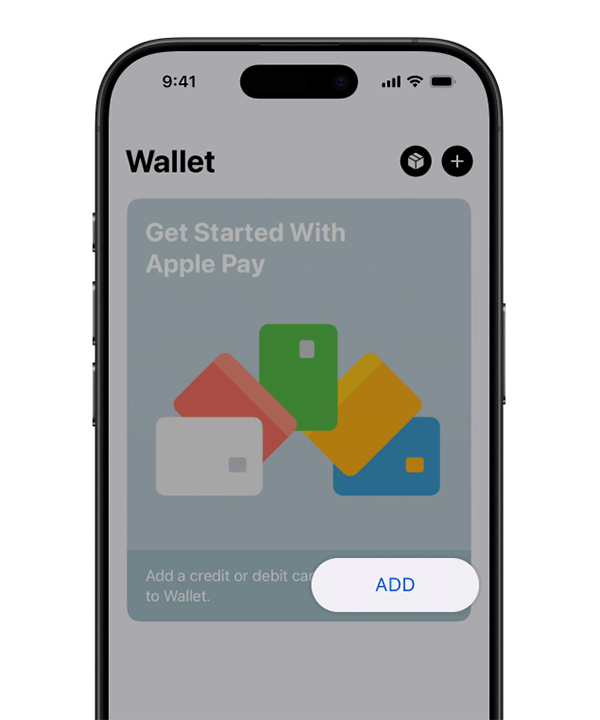
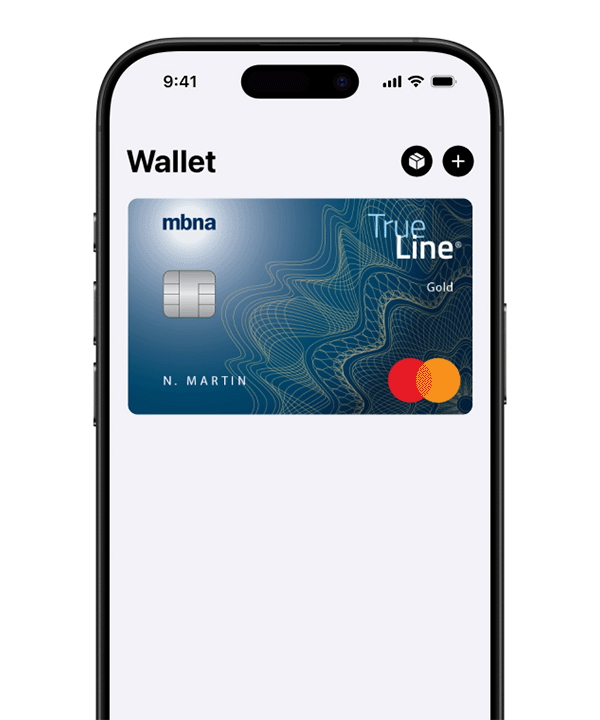
Paying for purchases is convenient, secure and easy when you connect your MBNA credit card to Apple Pay, Google Pay, or Samsung Pay. Terms of use apply.
Benefits of using Apple Pay® with your MBNA credit card
How to make purchases
Frequently asked questions
Step 1: Open the Watch app on your iPhone.
Step 2: Select ‘Wallet & Apple Pay’ and then ‘Add Card.’
Step 3: Follow the onscreen instructions to add your eligible MBNA credit card.
To make purchases with Apple Watch, just double-click the side button and hold your device near the reader to finish payment.
Step 1: Open the settings app on your iPad.
Step 2: Select 'Wallet & Apple Pay' and then ‘Add Card.’
Step 3: Follow the onscreen instructions to add your eligible MBNA credit card.
Yes, you will need to have your MBNA credit card number, expiry date and Card Verification Code (CVC) with you in order to enable your card for use within the Apple Wallet app.
iPhone or iPad
- Go to ‘Settings’ > ‘Wallet & Apple Pay’
- Tap ‘Default Card’, then choose your MBNA card
Note: You can also open Wallet, touch and hold a card, then drag it to the front of your cards.
Apple Watch
- Open the Watch app
- Tap ‘Wallet & Apple Pay’ > ‘Default Card’
- Choose your MBNA card
Note: All eligible additional cardholders can add their cards to Apple Pay.
If you are experiencing issues adding your MBNA credit card to Apple Pay, here are some steps you can try:
- Check your MBNA credit card to make sure you have entered your card details correctly
- Check the eligibility of your MBNA credit card with Apple Pay
- Check that your device is compatible with Apple Pay
- Update your device to the latest version of iOS or iPadOS, watchOS, or macOS
- Make sure you are in a supported country or region
If you have further questions, give us a call at 1-888-876-6262.
Lost or stolen MBNA credit card
If you think you've misplaced your MBNA credit card, lock it in the MBNA Mobile App and unlock when you've found it. (Please note, if you lock your MBNA credit card account in the MBNA Mobile App, you can't make new purchases, take out cash advances or request balance transfers. However, pre-authorized payments will still go through, and you can still return purchases and get credits and refunds using this card.)
If your card or other credit device is lost, stolen, or misplaced, contact us immediately at 1-888-876-6262 to deactivate your card from use. Customer Service associates are standing by 24 hours a day, 7 days a week.
Lost or stolen Apple device
You must can contact us at 1-888-876-6262 to deactivate your MBNA credit card in the device.
Plus, if your Apple Device is ever lost or stolen, you can suspend or permanently remove the ability to pay from that device with Apple Pay. To learn more, visit the Apple website.
Your MBNA credit card will remain active and available for purchases using Apple Pay until the date of expiry on your physical card. You will be mailed a new card and your new card must be activated for it to be used. Once activated, your new card will be ready to use on Apple Pay automatically.
To see a full list of devices that are compatible with Apple Pay, visit the Apple website.
All MBNA Mastercard credit cards in Canada which are in good standing are eligible for use with the Apple Wallet app.
Occasionally, an initial authorization amount will be passed to the Apple Wallet app from locations such as restaurants, gas service stations, hotels and car rental companies, which might be different from the final transaction amount. Note that this is not a charge and you will only be charged the final transaction amount, as it appears on your statement. Always refer to your MBNA account statement for final transaction details.
Apple Pay works with your MBNA credit card in eligible countries and regions that support contactless payments.
Note: Additional fees may be charged for wireless data or foreign transactions.
Apple Pay is available for participating transit systems in certain countries and regions. You will need to add your MBNA credit card to Apple Pay before paying your transit fare.
Compatible cards, including MBNA credit cards, in your Apple Wallet app can also be used with Express Mode, which allows you to pay for transit with Apple Pay without waking or unlocking your Apple device.
There are several reasons why your MBNA credit card may be declined with Apple Pay:
- You have reached the credit limit for your card or there is limit on the transaction amount
- There may be a problem with Apple Pay or your device which is preventing transactions from going through. Ensure your device is updated to the latest version of iOS or iPadOS, watchOS, or macOS
- You are not in a supported country or region
- The merchant terminal does not support contactless payments
If you have any further questions, give us a call at 1-888-876-6262.
Step 1: Open the Watch app on your iPhone.
Step 2: Select ‘Wallet & Apple Pay’ and then ‘Add Card.’
Step 3: Follow the onscreen instructions to add your eligible MBNA credit card.
To make purchases with Apple Watch, just double-click the side button and hold your device near the reader to finish payment.
Step 1: Open the settings app on your iPad.
Step 2: Select 'Wallet & Apple Pay' and then ‘Add Card.’
Step 3: Follow the onscreen instructions to add your eligible MBNA credit card.
Yes, you will need to have your MBNA credit card number, expiry date and Card Verification Code (CVC) with you in order to enable your card for use within the Apple Wallet app. Simply add your card to Apple Pay on your iPhone using the MBNA Mobile App.
Learn more on how to add your eligible MBNA credit card through the MBNA Mobile App.
iPhone or iPad
- Go to ‘Settings’ > ‘Wallet & Apple Pay’
- Tap ‘Default Card’, then choose your MBNA card
Note: You can also open Wallet, touch and hold a card, then drag it to the front of your cards, or you can also set up a default card through the Mobile App.
Apple Watch
- Open the Watch app
- Tap ‘Wallet & Apple Pay’ > ‘Default Card’
- Choose your MBNA card
Note: All eligible additional cardholders can add their cards to Apple Pay.
There are a few reasons why your MBNA credit card may not appear in the MBNA Mobile App as available for Apple Pay:
- The card may be connected to a different profile. If you can't see the card under My Accounts in MBNA Online Banking, this may be the case.
- You may be logged in with a different username and password, i.e., for a business account. You need to log in to the Mobile App with the credentials that are linked to the MBNA credit card you are trying to add.
If you are experiencing issues adding your MBNA credit card to Apple Pay, here are some steps you can try:
- Check your MBNA credit card to make sure you have entered your card details correctly
- Check the eligibility of your MBNA credit card with Apple Pay
- Check that your device is compatible with Apple Pay
- Update your device to the latest version of iOS or iPadOS, watchOS, or macOS
- Make sure you are in a supported country or region
If you have further questions, give us a call at 1-888-876-6262.
Lost or stolen MBNA credit card
If you think you've misplaced your MBNA credit card, lock it in the MBNA Mobile App and unlock when you've found it. (Please note, if you lock your MBNA credit card account in the MBNA Mobile App, you can't make new purchases, take out cash advances or request balance transfers. However, pre-authorized payments will still go through, and you can still return purchases and get credits and refunds using this card.)
If your card or other credit device is lost, stolen, or misplaced, contact us immediately at 1-888-876-6262 to deactivate your card from use. Customer Service associates are standing by 24 hours a day, 7 days a week.
Lost or stolen Apple device
You must can contact us at 1-888-876-6262 to deactivate your MBNA credit card in the device.
Plus, if your Apple Device is ever lost or stolen, you can suspend or permanently remove the ability to pay from that device with Apple Pay. To learn more, visit the Apple website.
Your MBNA credit card will remain active and available for purchases using Apple Pay until the date of expiry on your physical card. You will be mailed a new card and your new card must be activated for it to be used. Once activated, your new card will be ready to use on Apple Pay automatically.
To see a full list of devices that are compatible with Apple Pay, visit the Apple website.
All MBNA Mastercard credit cards in Canada which are in good standing are eligible for use with the Apple Wallet app.
Occasionally, an initial authorization amount will be passed to the Apple Wallet app from locations such as restaurants, gas service stations, hotels and car rental companies, which might be different from the final transaction amount. Note that this is not a charge and you will only be charged the final transaction amount, as it appears on your statement. Always refer to your MBNA account statement for final transaction details.
Apple Pay works with your MBNA credit card in eligible countries and regions that support contactless payments.
Note: Additional fees may be charged for wireless data or foreign transactions.
Apple Pay is available for participating transit systems in certain countries and regions. You will need to add your MBNA credit card to Apple Pay before paying your transit fare.
Compatible cards, including MBNA credit cards, in your Apple Wallet app can also be used with Express Mode, which allows you to pay for transit with Apple Pay without waking or unlocking your Apple device.
There are several reasons why your MBNA credit card may be declined with Apple Pay:
- You have reached the credit limit for your card or there is limit on the transaction amount
- There may be a problem with Apple Pay or your device which is preventing transactions from going through. Ensure your device is updated to the latest version of iOS or iPadOS, watchOS, or macOS
- You are not in a supported country or region
- The merchant terminal does not support contactless payments
If you have any further questions, give us a call at 1-888-876-6262.